Skip to content
SeeTheBug

Product tour

See it in action

Two pieces: a small client your customer runs on their own machine, and the portal your team works in. Here is what both actually look like.

Reporting a bug

What the person hitting the bug sees, start to finish. They never register and never see your portal — the whole flow is five steps in a window they open from the tray.

It is built as your installer, so it carries your name, your icon and your color — nothing in it has to say SeeTheBug. The interface ships in nine languages and lays out right to left where the language calls for it.
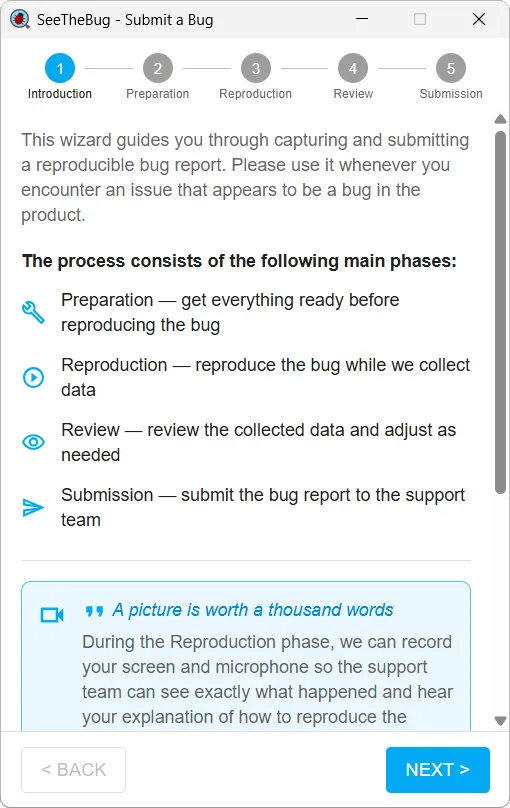
  1. The SeeTheBug client explaining the four phases of a capture to the person about to report the bug
    Step 1 — IntroductionThe end user opens the client from the tray. No account, no login, no portal.
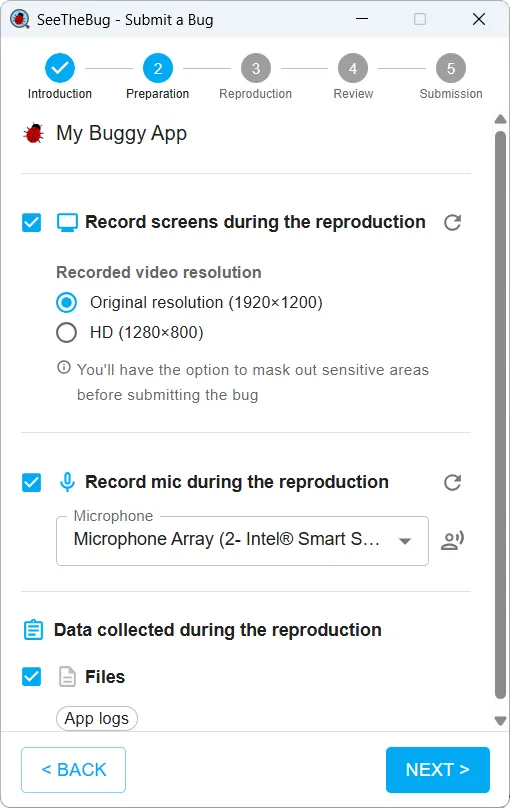
  2. The preparation step, showing which screens and microphone will be recorded and the data that will be collected alongside them
    Step 2 — PreparationThe steps you configured run automatically, and the reporter confirms what is about to be recorded and collected.
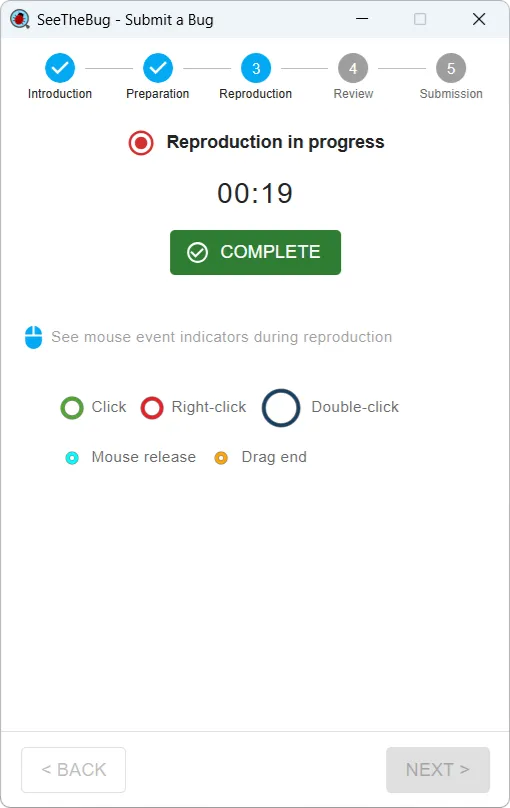
  3. The reproduction step with a recording in progress: an elapsed timer, a Complete button, and a legend of the mouse actions being marked in the video
    Step 3 — ReproductionThe reporter reproduces the problem while the client collects everything your configuration asks for — so your team gets the whole picture, not just a video.
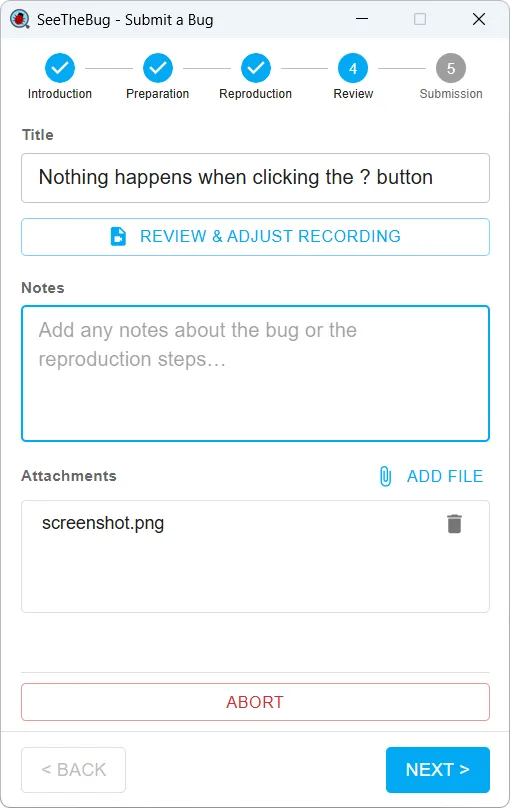
  4. The review step, where the reporter titles the bug, adds notes and attaches extra files before sending
    Step 4 — ReviewThe reporter titles the issue, adds notes and attachments, and can play the recording back before any of it is sent.
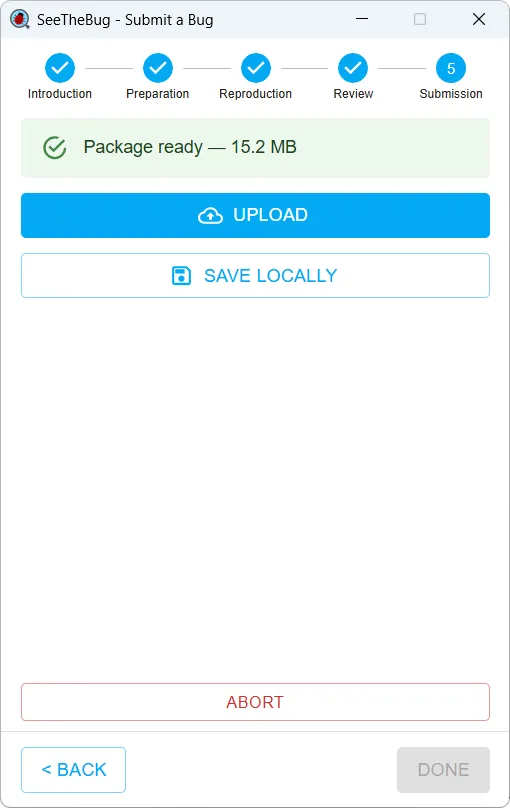
  5. The submission step showing a sealed capture package ready to upload or save to disk
    Step 5 — SubmissionUpload, or save to disk when the machine has no direct route to the internet.

Before anything is sent

The reporter can watch the recording back and mask anything that should not leave their machine. Masked regions are burned into the video, not stored alongside it.
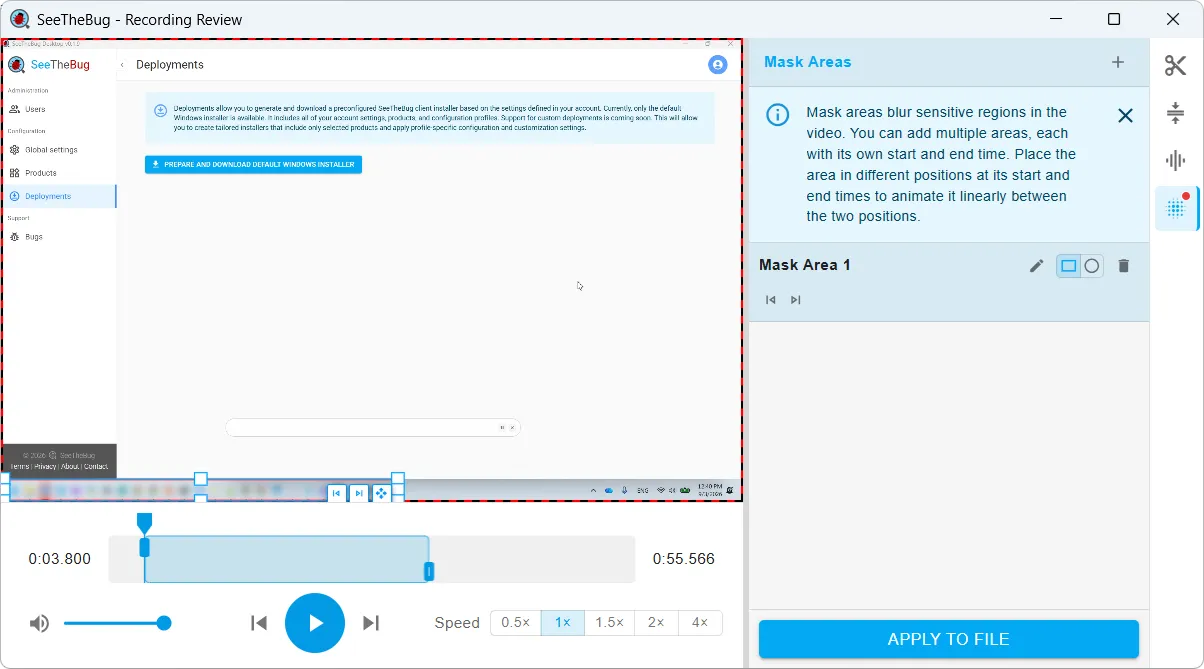
The recording review window playing back a captured session, with a mask area covering part of the screen and a timeline for setting where the mask starts and ends
A mask area can move between its start and end position, so it keeps covering something that moves as the recording plays.

Your side

The portal is where you configure what the client captures, and where the packages land.

Everything reported, in one place
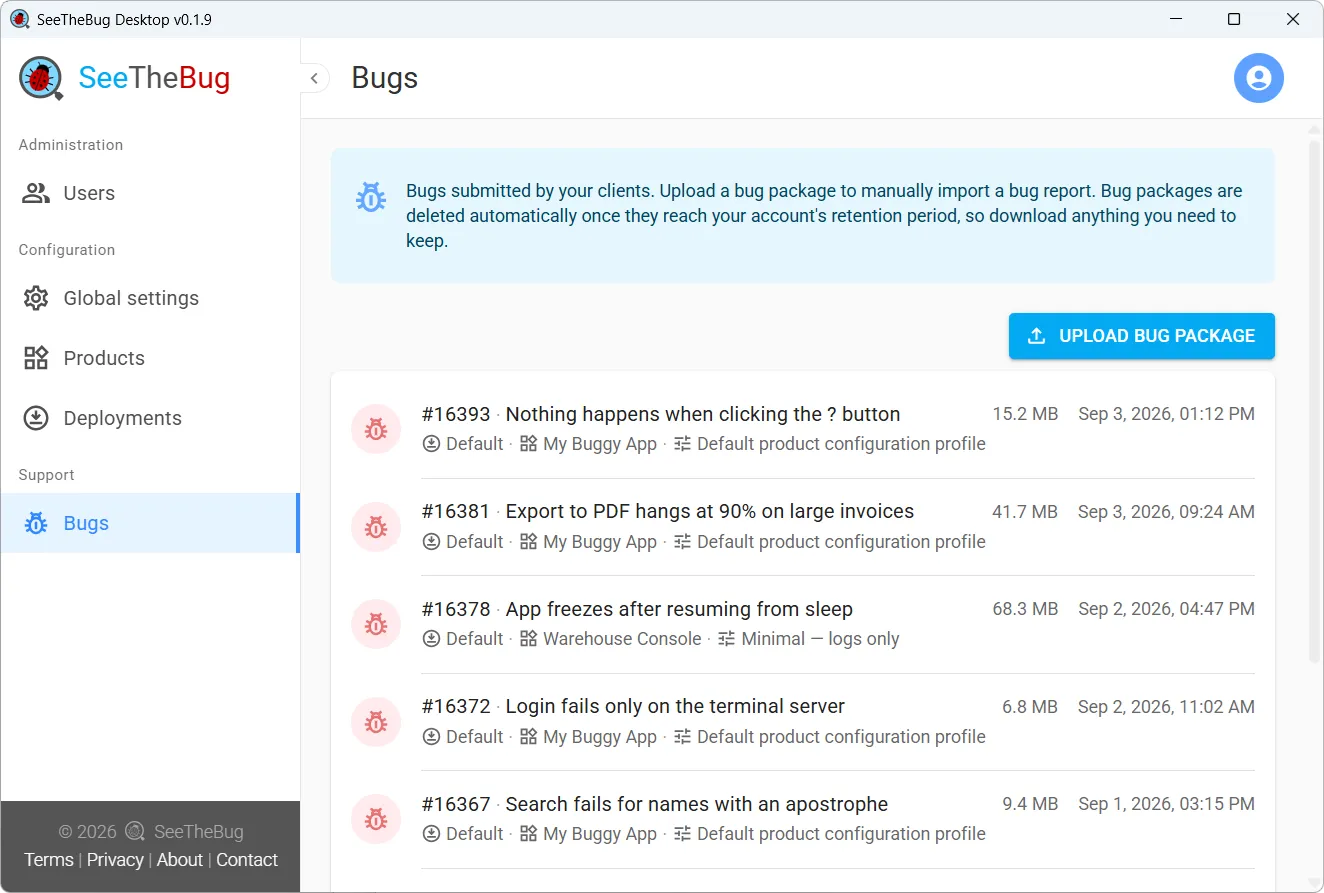
The portal listing submitted bugs with their capture size, submission time, product and configuration profile
Each submission arrives with its deployment, product and configuration profile, so you know how it was captured before you open it.

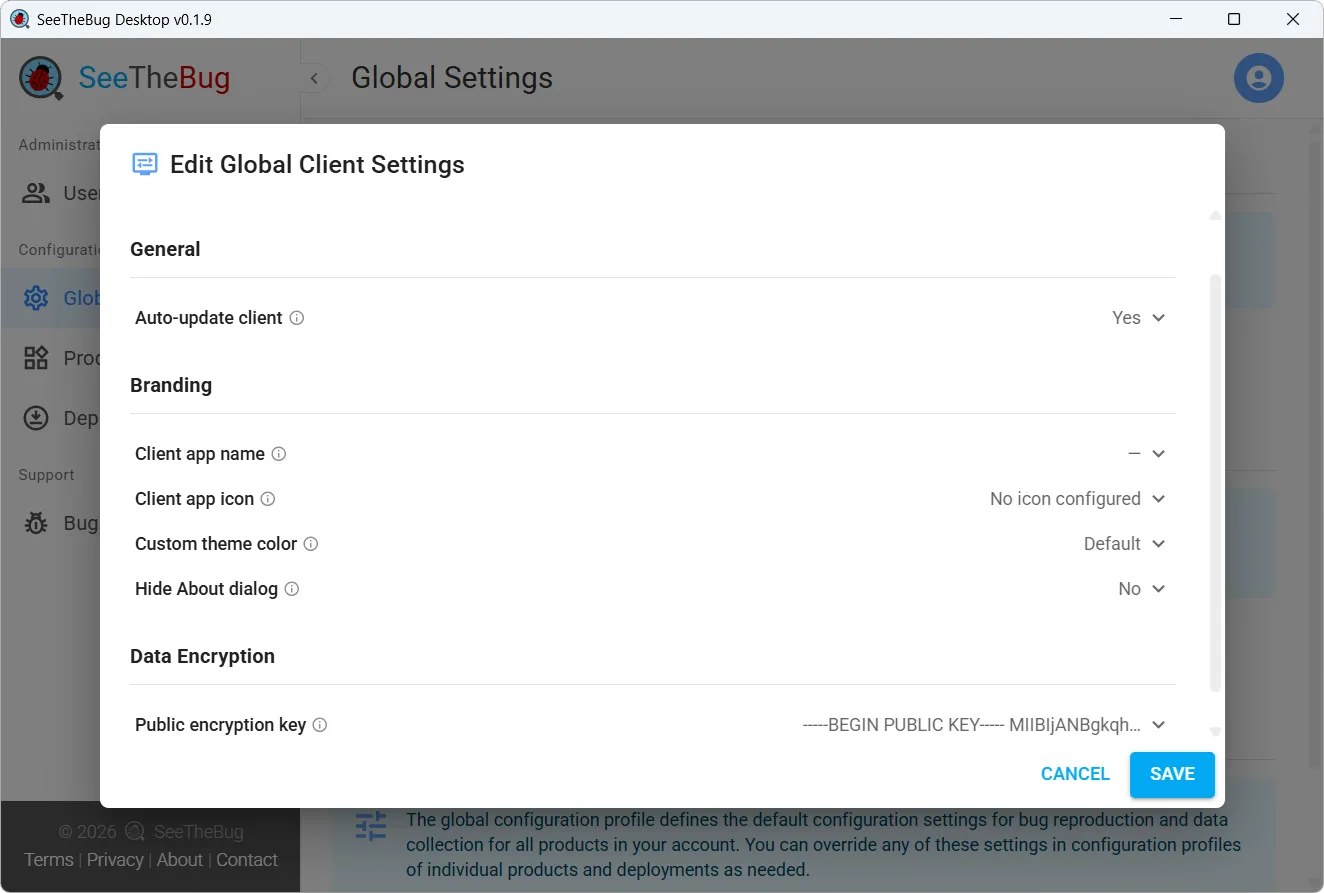
Branding and encryption

The global client settings dialog, showing client branding options and the public key used for end-to-end encryption
Rename the client, use your own icon, and add a public key so packages are encrypted on the end user’s machine and never readable by us.

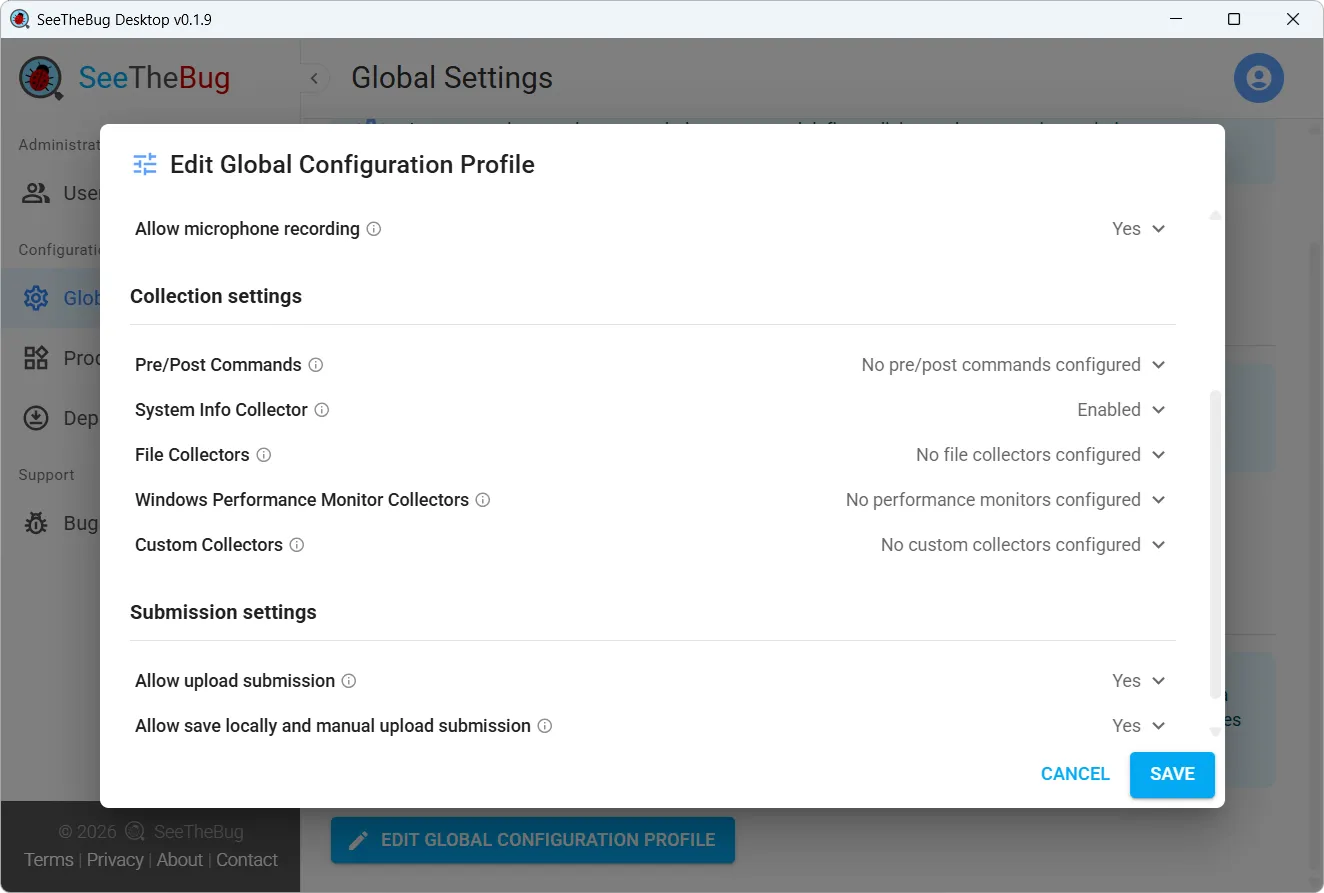
What gets captured

The global configuration profile, listing the collection settings — pre/post commands, system info, file collectors, performance monitors and custom collectors — and the submission options
The global profile sets the defaults and each product or deployment can override it. Pre/post commands and collectors are running on the reporter’s machine as they reproduce the bug, so you get the full context of what is happening.

Free while SeeTheBug is in early access.

Start free trial